
- nordvikoffice.com/catalogue
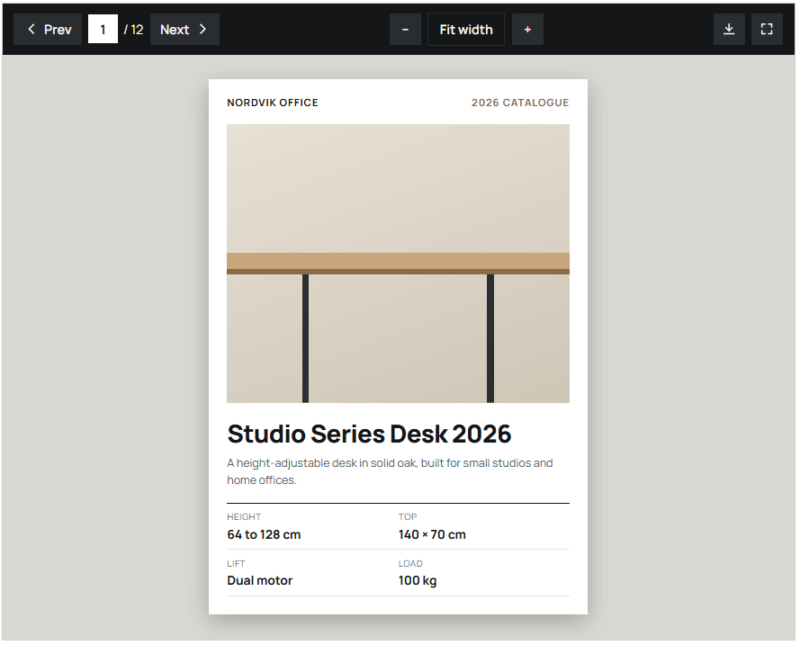
Examples
The document stays on your page, on every screen.
Frame size, toolbar buttons, and colors in each example are set in the element.
- osterialume.co.uk/menu
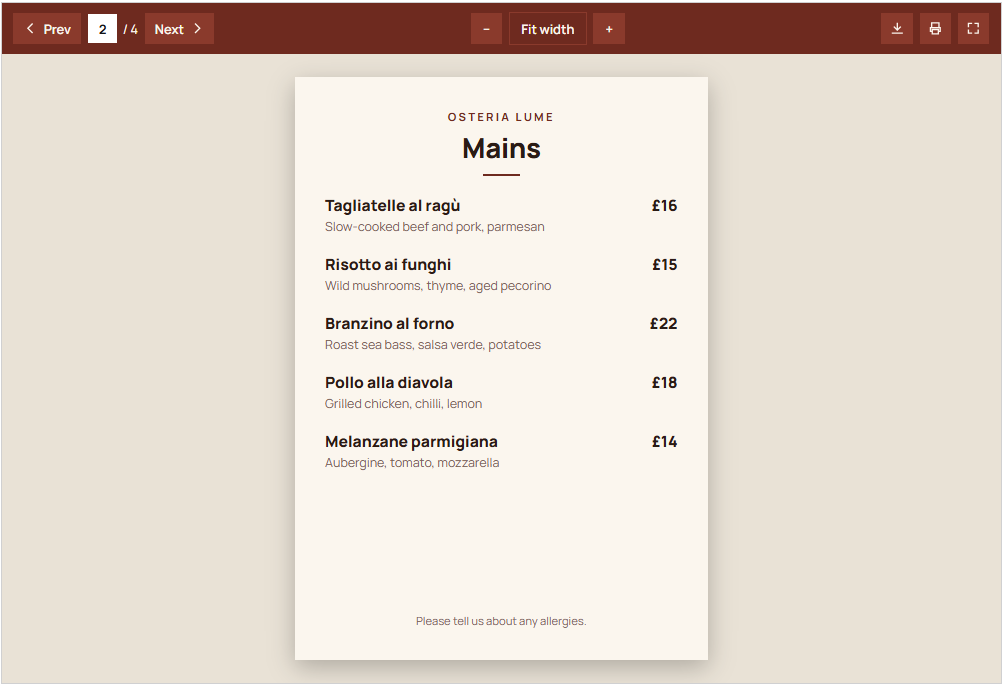
[ Height Mode: Aspect ratio, A4 ] [ Start Page: 1 ] [ Print Button: On ]
Example 01
A restaurant menu in an A4 frame
The frame keeps A4 proportions at every width, so the whole page fits without cropping. A deep red toolbar matches the restaurant, and the print button is switched on for diners who want a copy.
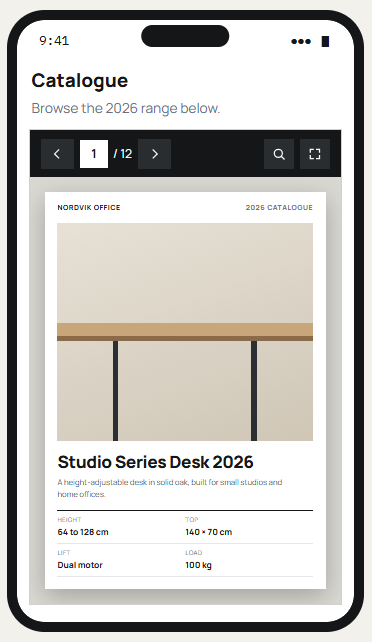
Same viewer on iPhone
Example 02
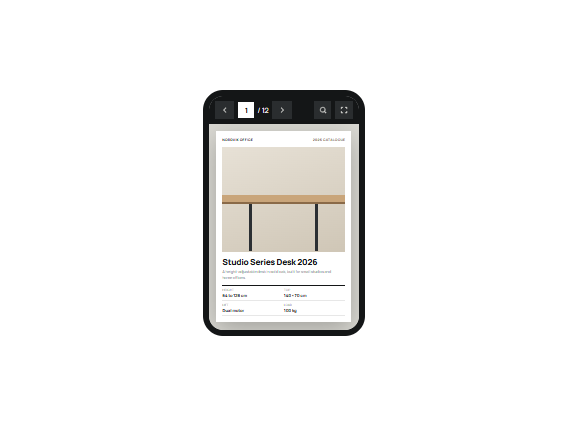
The brochure on a phone
The same page and the same toolbar, only narrower. Fit width means the cover fills the screen, and text stays sharp when visitors zoom in.
Example 03
Loading and error states
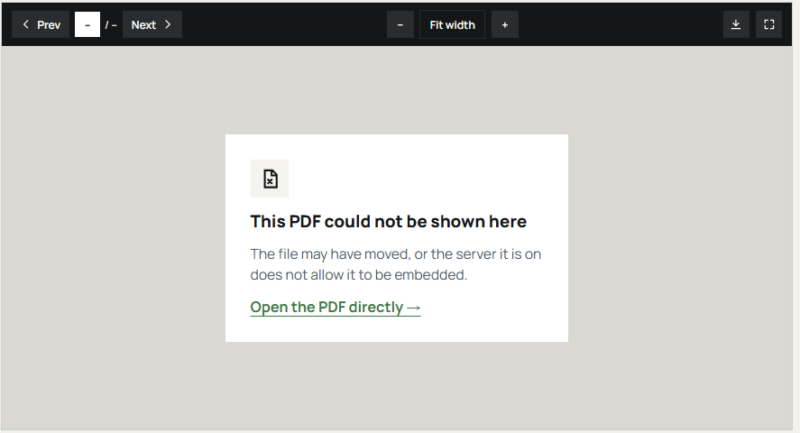
A placeholder holds the frame’s space while the file loads, so nothing on the page jumps. If the file cannot load, visitors get a plain explanation and a link to the PDF itself.
[ Loading ]
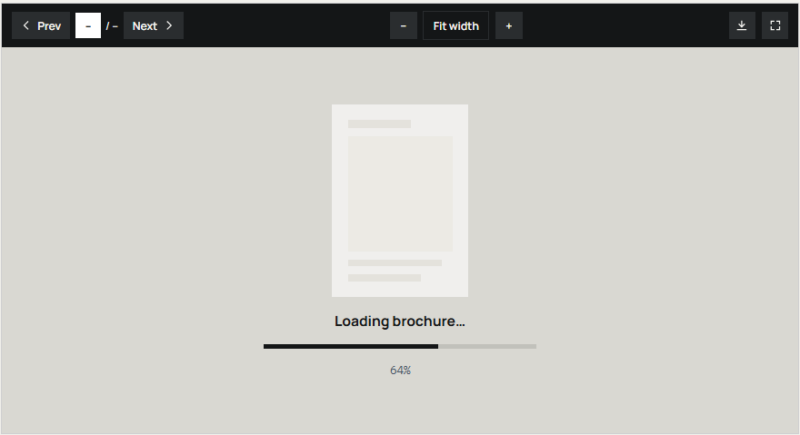
[ Could not load ]
Example 04
The settings panel
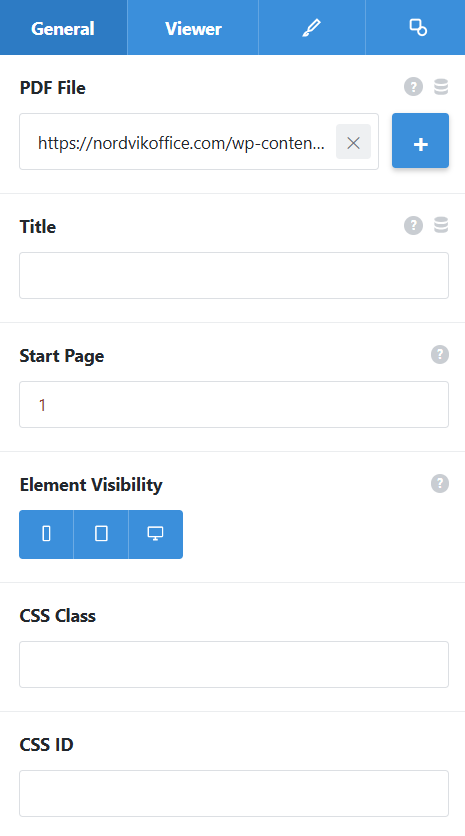
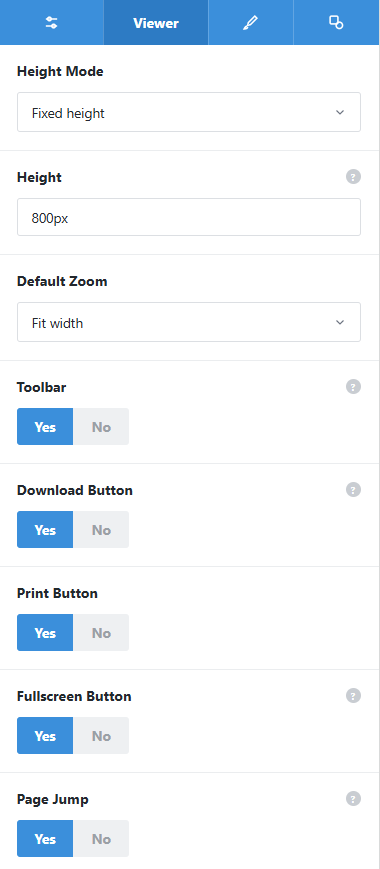
The General and Viewer tabs side by side. Margin and padding
are on the Design tab, and conditional rendering on Extras.
PDF File and Start Page
Choose a file from the media library or paste a URL, then pick the page it opens on.
Height Mode
Fixed height in pixels, a share of the viewport height, or an aspect ratio preset: A4, Letter, or 16:9.
Default Zoom
Fit width by default, with preset zoom levels in the toolbar.
Toolbar buttons
Turn download, print, fullscreen, and page jump on or off. Print starts off because browsers handle it inconsistently.
See it working on a real Avada site.
What you can build
Documents people can read without leaving.
Brochures and spec sheets
Publish a product brochure that opens properly on an iPhone, not just on a laptop. Customers can page through it right next to your contact form.
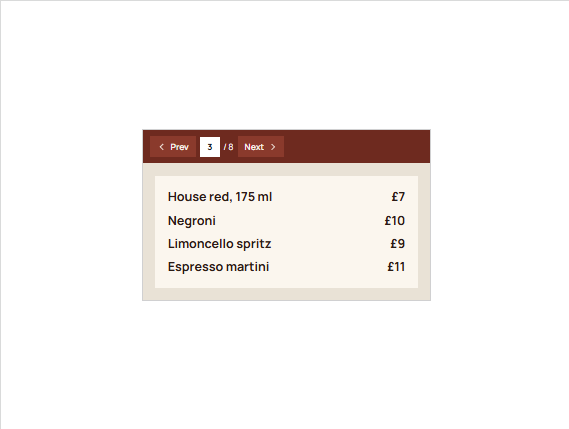
Menus, price lists, and catalogs
Keep the PDF you already print and show it on the page as it is. When the menu changes, upload the new file and the page updates.
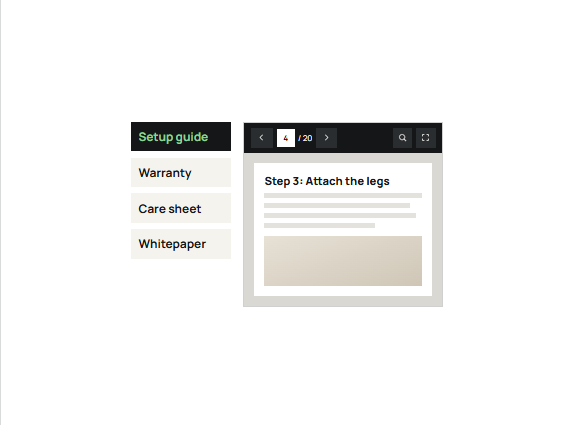
Manuals and resource libraries
Pair a list of guides with one viewer so readers move between documents without new tabs. Start each manual on the page that matters most.
Features
What the viewer gives you.
Same view on every device
Identical rendering from desktop to iPhone, with crisp text at any zoom.
Bundled viewer
Ships with the plugin. No Google Docs viewer and no third-party CDN.
Loads when it is needed
Starts loading as visitors scroll near it, with a placeholder holding the space.
Page navigation
Previous and next, a current page indicator, and jump to a page number.
Zoom presets
Fit width by default, with preset levels for dense pages.
Fullscreen, download, print
Turn each on or off. Print starts off because browsers handle it inconsistently.
Start page
Open the document on the page where the useful part begins.
Three height modes
Fixed pixels, viewport height, or an A4, Letter, or 16:9 ratio.
Library or URL, with a fallback
Use a media library file or an external URL. If it fails, visitors get a direct link.
Works the Avada way
Placed and sized like any other element.
Pick a file, set the frame, and choose which toolbar buttons appear.
[ ]
Avada Builder
Add the viewer to a column and choose the PDF from your media library.
[ ]
Conditional rendering
Show the viewer only to logged-in users, a role, or other Avada conditions.
[ ]
Avada Live
Size the frame on the page and check how the first page sits.
[ ]
Live option updates
Full or constrained width, plus margin and padding per breakpoint, all shown as you edit.
FAQ
PDF Viewer questions
Related elements
Fancy Image Scroller
Long screenshots in a short frame
A fixed window that scrolls across a tall or wide image on hover or as it appears.
Fancy Content Gate
Downloads after a short form
Place an overlay over a resource section that lifts once an Avada Form is submitted.
Fancy Advanced Table
Spec data visitors can search
Turn a spec sheet into a sortable, searchable table that pages through long lists.