
Examples
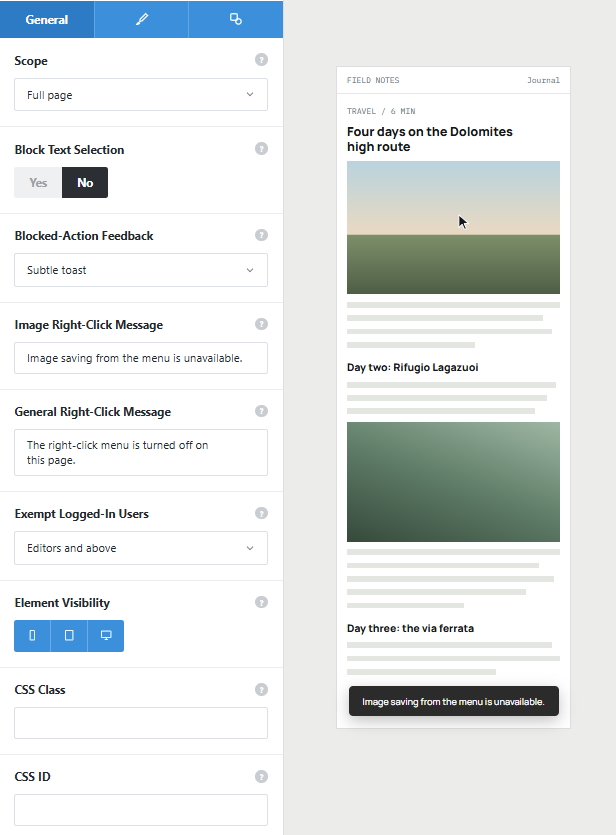
Nothing to see on the page until someone tries to copy.
There is no visible widget. These are the only moments a visitor might notice it.
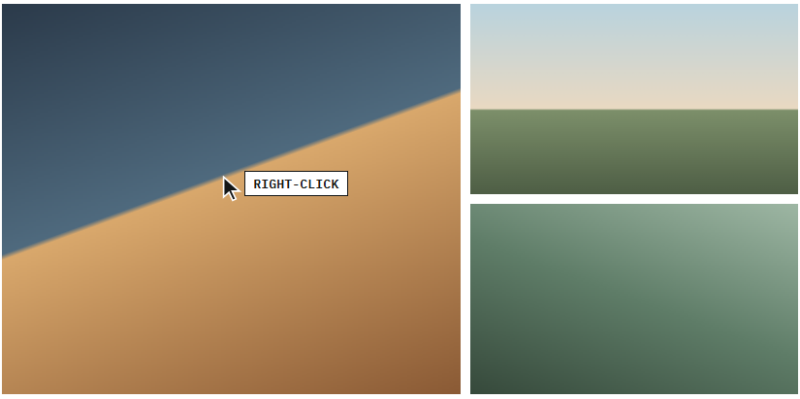
[ Scope: Images only ] [ Block Image Drag: Yes ] [ Block Text Selection: No ] [ Feedback: Subtle toast ]
Example 01
Right-clicking a photograph
The browser menu with Save image does not open, and the subtle toast explains why. Image dragging is blocked too, while the caption stays selectable because Block Text Selection is set to No.
- slowkitchen.co/recipes/brown-butter-loaf
Recipe / Serves 8
Brown butter banana loaf
Melt 120 g of butter over medium heat and keep stirring until the solids turn the color of hazelnuts. Pour it into a cold bowl straight away so it stops cooking.
Mash three very ripe bananas with 90 g of brown sugar, then whisk in the butter, two eggs, and a teaspoon of vanilla.
[ Scope: Full page ] [ Block Text Selection: Yes ] [ Shown once per session ]
Example 02
Dragging across text
The drag leaves no highlight, so there is nothing to copy. The toast appears the first time this happens and stays quiet for the rest of the visit.
Example 03
The full settings panel
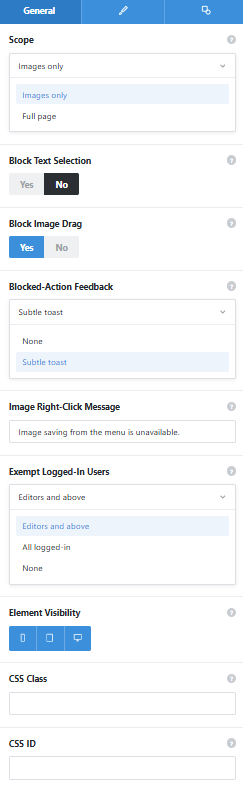
This is the panel with the images-only scope selected and each dropdown opened, so you can see every choice.
Scope
Images only or Full page. Images only adds the Block Image Drag switch.
Block Text Selection
Yes stops text from being highlighted. No leaves text selectable.
Block Image Drag
Yes stops photos from being dragged off the page. Shown with the images-only scope.
Blocked-Action Feedback
None stays silent. Subtle toast shows one small message, at most once per browser session.
Exempt Logged-In Users
Editors and above, all logged-in users, or none. Set it to none to test as a visitor.
[ Being upfront ]
This is a deterrent. It puts off casual copying in the browser, but anyone determined can still take a screenshot, view the page source, or use browser developer tools. Do not rely on it for confidential material.
See it working on a real Avada site.
What you can build
A speed bump for the quick copy and paste.
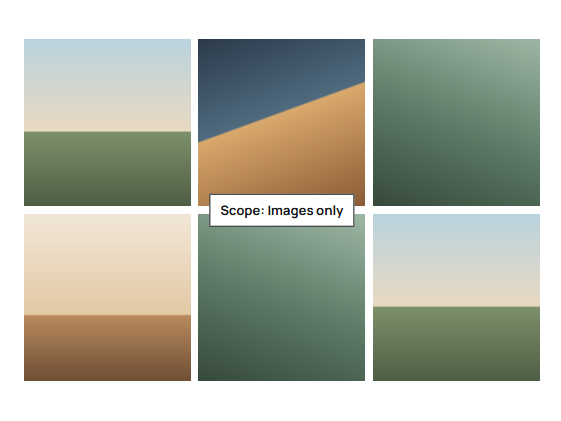
Portfolios for photographers and artists
Use the images-only scope with image dragging blocked, so photos cannot be pulled straight onto a desktop. Leave text selection off and captions stay easy to quote.
Articles and course lessons
Block text selection across lesson pages or long reads. Casual visitors are less likely to paste whole paragraphs into their own posts.
Recipes, menus, and price lists
Make it harder for a competitor to lift your wording or prices by hand. Use the full page scope, and anyone who tries gets one quiet toast at most.
Features
What you can switch on.
Two scopes
Choose images-only or the full page, and the panel shows the options for that scope.
Block text selection
Dragging across text leaves no highlight to copy. Switch it on or off.
No image save menu
Right-clicking an image no longer offers Save image.
Block image drag
With the images-only scope, photos cannot be dragged off the page.
Silent or subtle toast
Stay silent, or show one small message at most once per browser session.
Exempt logged-in users
Skip editors and above, all logged-in users, or nobody.
Per-device visibility
Choose whether it runs on phones, tablets, and desktops.
Works the Avada way
Added like any other element.
No extra plugin to install and no separate settings page. It lives on the page it applies to.
[ ]
Avada Builder
Choose it from the Fancy Elements group and set the options in its panel.
[ ]
No extra plugin
There is nothing else to install, update, or configure site-wide.
[ ]
Avada Live
Add and configure it while editing the page on the front end.
[ ]
Editors keep working
By default editors and above are exempt, so building the page is never blocked.
FAQ
Content Protection questions
Related elements
Fancy Content Gate
Reveal the rest after a sign-up
Show the opening of a guide and open the remainder once an Avada Form is sent.
Fancy PDF Viewer
PDFs shown in the page
Display documents one page at a time with zoom and navigation, the same in every browser.
Fancy Filterable Gallery
Portfolios sorted by category
Filter buttons narrow the grid by category, and a built-in lightbox opens each image.